
A skincare tube is one of the harder shapes to fake in 2D. The body curves, the label wraps around that curve, the shoulder tapers into the cap and the bottom ends in a flat crimp. Get any of those wrong and the image looks like a sticker on a cylinder, which is exactly what it is when you build it flat.
A 3D mockup handles all four automatically, because the tube is an actual model and your artwork is a texture on its surface. Here is how to do it properly, starting with the part most people skip.
Pick the tube size before you design anything
Tube diameter and fill volume are linked, and your label proportions depend on both. A 50 ml serum in a narrow 25 mm tube is long and slim. The same 50 ml in a 35 mm tube is short and stout. The same label artwork will look completely different on the two.
| Capacity | Typical diameter | Usually used for |
|---|---|---|
| 20-50 ml | 25 mm | Eye cream, treatment serums |
| 30-60 ml | 30 mm | Face cream, hand cream |
| 35-110 ml | 35 mm | Cleanser, sunscreen |
| 100-200 ml | 40-50 mm | Body lotion, larger skincare |
Industry-standard tube diameters run 16, 19, 22, 25, 30, 35, 40 and 50 mm. The 30 to 35 mm range covers most facial skincare, which is why it is the size to reach for if you are not sure yet. The trade-off is simple: a narrower tube has to be longer to hold the same volume, a wider one can be shorter.
Prepare your label artwork
Export the label as a flat PNG with a transparent background if the tube colour should show through, or as a full-bleed rectangle if the label covers the whole body. Four things to check before you upload:
- Keep the important text in the middle third. The left and right edges of a flat label wrap away from the camera. Anything out there gets compressed and becomes hard to read.
- Leave the bottom 15 to 20 mm quiet. That area sits in or near the crimp seal on a real tube, and it reads as clutter in a mockup.
- Design at print resolution. 300 DPI at the real label size. Upscaling a small file makes the wrap look soft.
- Decide the tube colour separately. The body colour is a material setting in the mockup, not part of your artwork. Leave it out of the PNG.
Make the mockup, step by step
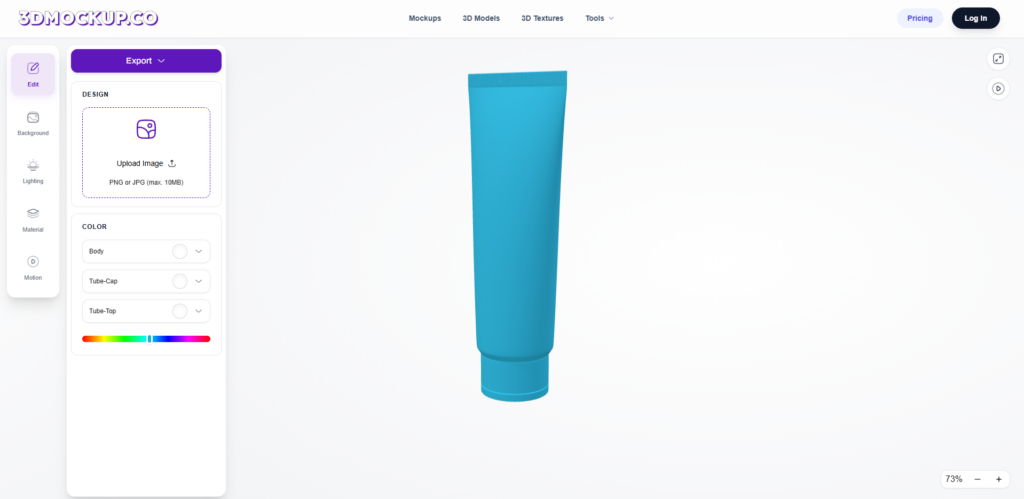
- Open the tube template. Go to the 3D packaging mockup generator and pick a tube from the Tubes category.
- Upload your label. Drop in the PNG or JPG. It maps onto the tube body automatically, following the curve.
- Set the tube and cap colours. These are separate materials, so a white body with a coloured cap is one click, not a Photoshop mask.
- Rotate to check the wrap. Spin the model and watch where your text goes at the edges. This is the step that catches problems a flat preview hides.
- Choose a background. Plain white for marketplace listings, a tinted or scene background for social.
- Export. PNG or JPG for listings, MP4 if you want a slow rotation for Reels or a product page.
The whole sequence takes a couple of minutes. If you would rather see the comparison with the Photoshop route first, we wrote it up in 3D mockups vs Photoshop Smart Objects, and there is a Photoshop-specific walkthrough in how to create a 3D packaging design mockup in Photoshop.
Four mistakes that make a tube mockup look wrong
- Text running into the crimp. Real tubes are sealed flat at the bottom. Artwork that runs into that band looks like a printing error.
- Ingredient lists set too small. At listing thumbnail size they turn into grey noise. Either size them up or leave them for the back view.
- A cap colour that does not exist. If your manufacturer only offers white, black and natural, do not render a lilac cap. The mockup sets a customer expectation the parcel has to meet.
- One angle only. Buyers want to see the front, the back and the cap. One hero shot is not a listing.
Export settings that actually matter
For Amazon, Etsy and Shopify, export the largest size the template offers and let the platform downscale. A square crop on a white background is the safest first image almost everywhere. Keep a transparent PNG too if you plan to drop the tube onto banners later.
If you are building a full set of listing images, our guide on using 3D mockups for Etsy listings covers how many angles to shoot and in what order. The same logic applies to a cylindrical product like a can, which we walked through in how to make a 3D can mockup.
Frequently asked questions
What size should a skincare tube mockup be?
Match the real product. 30 ml to 50 ml suits eye creams and treatments, 50 ml to 100 ml suits cleansers and sunscreen, and 100 ml to 200 ml suits body lotion. Diameter follows capacity: roughly 25 mm for small treatment tubes, 30 to 35 mm for most facial skincare, and 40 to 50 mm for body care.
Do I need Photoshop to make a 3D tube mockup?
No. A browser-based 3D mockup generator handles the curve, the wrap and the lighting for you. You upload a flat PNG or JPG of the label and the model does the rest. Photoshop is only needed if you want to retouch the finished render.
What resolution should my label artwork be?
300 DPI at the real printed label size. If the label is 90 mm wide, that is about 1060 pixels across. Anything less and the wrap looks soft once the image is rendered at full size.
Why does my text look squashed at the edges of the tube?
Because the tube is round. The left and right edges of a flat label curve away from the camera, compressing anything printed there. Keep names, claims and the logo inside the middle third of the label and the problem disappears.
Can I show the front and back of the same tube?
Yes. Because it is a 3D model rather than a photograph, you rotate it and export a second image. You do not need to buy a separate back-view template the way you would with a PSD mockup.
Can I export an animated tube mockup?
Yes. A slow rotation exports as MP4, which works well as the last image on a product page or as the opening shot of a Reel. Photoshop cannot produce this since Adobe removed its 3D engine in 2024.